If your Samsung TV has suddenly lost channels, started breaking up, or isn’t showing the programmes you normally watch, you’re not alone. It’s one of the most common TV issues people run into, especially after bad weather, local transmitter work, or even a simple power cut. The good news is that in most cases, a quick retune is all it takes to get everything back up and running.
If you’ve never retuned a TV before, don’t worry. It’s much easier than it sounds, and you don’t need any technical knowledge. In this guide, we’ll walk you through exactly how to retune a Samsung TV step by step, what to check before you start, what to do if something doesn’t go quite right, and when it’s worth getting professional help.
Why You Might Need to Retune a Samsung TV
Your TV stores a list of available channels based on the last scan it performed. When broadcasters make changes to frequencies, move channels around, or carry out maintenance on transmitters, that stored list can become outdated. When that happens, your TV may struggle to lock onto the correct signal.
You might notice channels disappearing, freezing pictures, sound dropping out, or blank screens on stations that worked perfectly yesterday. Sometimes the TV still shows the channel number, but nothing plays when you select it.
Weather can also play a part. Strong winds can slightly move an aerial, and heavy rain can temporarily weaken signal strength. Power cuts and unplugging cables can sometimes confuse the tuning memory too.
If you’ve recently moved home, fitted a new aerial, added a booster, or changed any cabling, a retune helps the TV find the strongest and most reliable signal available in your area.
What to Check Before You Retune
Before diving into the menu, it’s worth taking a minute to check a few simple things. These quick checks can save you time and prevent unnecessary frustration.
Make sure the aerial cable is pushed firmly into the back of the TV. It should feel snug, not loose or wobbly. If you use a wall socket, check that the plate hasn’t come away from the wall and that there’s no visible damage.
If all your TVs have lost channels at the same time, there could be transmitter work happening locally. Retuning during an outage can sometimes wipe your channels completely, leaving you with nothing until the signal returns. If you suspect this, it’s usually best to wait.
Also make sure you’re actually on the TV input and not an HDMI input. This sounds obvious, but it catches people out surprisingly often.
How to Retune a Samsung TV Using Auto Tuning
Most Samsung TVs make retuning very straightforward using the automatic scan feature. The wording in the menus can vary slightly depending on the model and age of the TV, but the steps are broadly the same.
Step 1 – Open the Settings Menu
Grab your remote and press the Home or Menu button. On newer Smart TVs, you’ll usually see a row of icons appear at the bottom of the screen. Look for the Settings icon, which often looks like a cog.
Step 2 – Find the Channel or Broadcasting Settings
Inside Settings, scroll until you see something labelled Channel, Broadcasting, or Live TV. This is where Samsung hides all tuning options.
Step 3 – Select Auto Tuning or Auto Programme
Choose Auto Tuning, Auto Programme, or something similar. The TV may ask you to confirm that you want to start scanning. Select Yes or Start.
If prompted, choose Antenna, Air, or Terrestrial rather than Cable, unless you specifically use cable television.
Step 4 – Let the Scan Finish
The scan normally takes a few minutes. You’ll see a progress bar as the TV searches for available channels. Try not to press any buttons or change inputs while this is happening.
Step 5 – Save and Check Your Channels
Once the scan finishes, the TV should save the channels automatically. Exit the menu and flick through a few familiar channels to make sure everything looks normal.
Retuning Older Samsung TV Models
If your Samsung TV is a few years old, the menu layout may look slightly different, but the process is still very similar.
Press Menu on the remote, then go to Channel or Broadcasting. Look for Auto Store or Auto Programme and select Start. Make sure Antenna or Air is selected if you’re using a rooftop aerial.
Let the scan complete fully before exiting.
How to Manually Retune a Samsung TV
Manual tuning is useful if automatic tuning doesn’t find certain channels, or if you know your local transmitter’s frequency.
From the Channel or Broadcasting menu, choose Manual Tuning or Manual Channel Setup. Select Digital Channel, enter the frequency or channel number, and start the scan. Save any channels that appear.
Manual tuning isn’t essential for most households, but it can help in areas with weaker signals or overlapping transmitters.
Common Retuning Problems and How to Fix Them
No Channels Found
If the scan finishes and shows zero channels, don’t panic. First, double-check the aerial cable connection. Make sure the TV input is set to TV, not HDMI. If there’s a known transmitter issue in your area, wait until it’s resolved before retuning again.
If this keeps happening, there may be an aerial or cabling issue.
Some Channels Are Missing
Missing channels usually point to weak signal quality or interference. Try another retune once conditions improve. If the problem persists, the aerial may need adjustment or upgrading.
Duplicate Channels
Sometimes the TV picks up signals from more than one transmitter, creating duplicate channels. These can usually be deleted in the channel manager or fixed with manual tuning.
Picture Breaks Up or Freezes
If the picture still breaks up after retuning, the issue is likely signal strength rather than tuning. Check cables and connectors for damage.
How Often Should You Retune Your Samsung TV
You don’t need to retune regularly. In fact, retuning too often during weak signal periods can sometimes make things worse. Only retune when channels disappear, broadcasters announce changes, or you’ve changed equipment.
Software Updates and Retuning
Samsung TVs receive software updates that may change menu layouts slightly. Keeping your TV updated helps stability, but updates don’t normally require retuning unless something goes wrong with channel storage.
When It’s Time to Get Professional Help
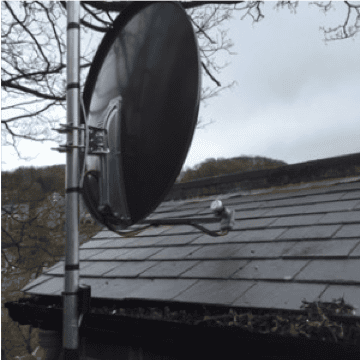
If you’ve retuned a few times and still can’t get reliable channels, there may be an underlying signal issue. Loose brackets, ageing aerials, damaged cables, or poor alignment can all cause ongoing problems.
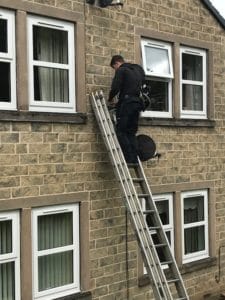
A professional aerial engineer can test signal levels properly, realign the aerial, replace worn components, and make sure everything is safe and secure at roof level.
Final Thoughts
Retuning a Samsung TV is one of those small jobs that can solve a surprisingly big problem. Most of the time, a simple scan gets your channels back quickly and saves a lot of frustration.
If you’ve tried retuning and things still aren’t right, it’s often a sign that the aerial system itself needs attention rather than the TV settings. Getting expert advice early can prevent repeat issues and keep your viewing reliable.